en-US
en-US 

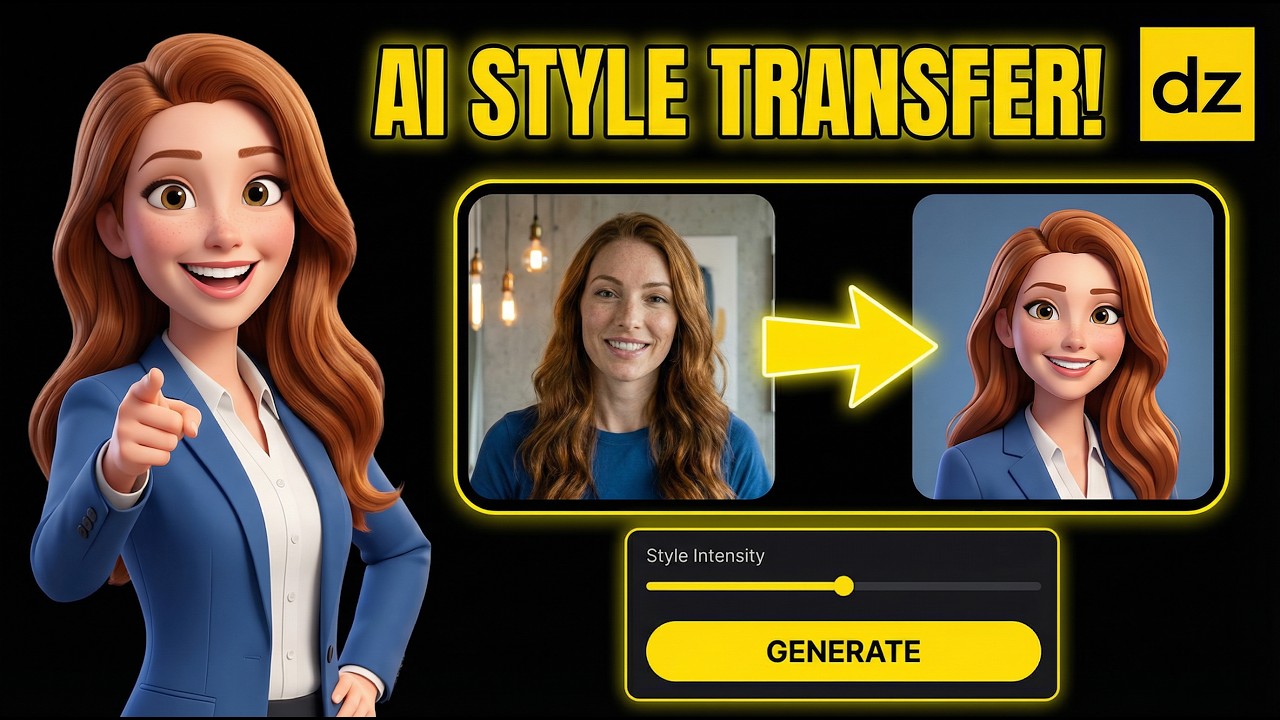
Have you ever wondered how to transform a simple portrait into a high-quality 3D animation? With the rapid advancement of generative AI, creating a Pixar-style digital twin is no longer restricted to professional animation studios. Using modern AI tools, you can now restyle your videos and photos with incredible precision and artistic flair.
In this guide, we will walk through a professional workflow to turn a static image into a fully expressive, talking 3D character. Whether you are looking to create unique content for social media or develop a brand mascot, these steps will help you achieve a polished, cinematic look.
The Step-by-Step AI Restyling Process
Step 1: Image-to-Image Style Transfer
The foundation of a great AI character starts with a high-quality source image. By using image-to-image style transfer, you can maintain your facial features while applying a specific aesthetic, such as a 3D cartoon or stylized illustration.
Upload a clear photo of yourself and use a style reference or a specific model designed for 3D character art. This ensures the output keeps the structural integrity of your face while adopting the desired textures and lighting of an animated movie.
Step 2: Prompting for the 3D Character Look
To get that specific "Pixar" feel, your prompts need to be descriptive. Focus on lighting, texture, and character design elements to guide the AI effectively.
- Style keywords: Use terms like "3D render," "unreal engine 5," and "octane render" to get high-end depth.
- Lighting: Mention "soft cinematic lighting" or "rim lighting" to make the character pop from the background.
- Details: Specify "subsurface scattering" for skin textures and "highly detailed eyes" for a more expressive look.
Step 3: Enhancing and Upscaling
AI-generated images often benefit from a secondary pass to fix artifacts and increase resolution. Use an upscale tool to sharpen details in the hair, eyes, and clothing. This step is crucial because any blurriness in the base image will be magnified once you start the animation process.
Step 4: Generating AI Video Animation
Once your 3D character is ready, it is time to bring it to life. This involves using an image-to-video generator where you can control motion intensity and camera movements. High-quality animation requires a balance between realistic movement and stylized character physics.
- Motion Control: Adjust the motion bucket settings to ensure the character doesn't look too static or too distorted.
- Camera Work: Use zoom-ins or subtle pans to give the scene a professional, cinematic feeling.
- Gesture Simulation: If the tool allows, guide the hand gestures and head tilts to match the energy of your intended message.
Step 5: Lip Syncing and Audio Integration
The final layer of realism comes from matching the character's mouth movements to a specific audio track. You can record your own voice or use high-quality AI voice synthesis to generate a script. Lip-syncing tools analyze the phonemes in the audio and map them directly onto the character's facial structure.
Best Practices for Animated AI Avatars
To ensure your digital twin looks professional, keep these technical tips in mind throughout your project:
- Consistency: Keep your seed numbers consistent if you are generating multiple angles of the same character.
- Audio Quality: Use clean, noise-free audio for better lip-syncing accuracy.
- Frame Rate: Aim for at least 24 or 30 frames per second during the final export for smooth motion.
Conclusion
Creating a high-end 3D animated character is now accessible to anyone with an internet connection and the right AI tools. By following this workflow—starting with a strong style transfer, refining with prompts, and finishing with precise lip-syncing—you can create a digital twin that truly stands out. Experiment with different styles to find the look that best represents your brand or personality.